Using Surrogate Colour Tables in TuiView
Introduction
One last piece of TuiView functionality that has not yet been covered in this blog series is the ability to add “surrogate” colour tables to a file and use them to display images within TuiView.
Normally, a thematic file is displayed using the colour table within the Raster Attribute Table. However, in situations where RAT columns have different classifications which require the image to be shown in the colour table for that classification it is handy to be able to add surrogate colour tables and view the image with those.
The tuiviewwritetable utility
Installed with TuiView, the tuiviewwritetable command line utility allows
surrogate colour tables to be added, removed and queried:
$ tuiviewwritetable -h
usage: tuiviewwritetable [-h] [-s SOURCE] [-n NAME] [-d DEST] [-p PRINTCT] [-r REMOVE]

options:
  -h, --help            show this help message and exit
  -s SOURCE, --source SOURCE
                        File to read color table from
  -n NAME, --name NAME  name to save the color table under
  -d DEST, --dest DEST  destination file to write color table into
  -p PRINTCT, --print PRINTCT
                        print out available color tables
  -r REMOVE, --remove REMOVE
                        remove table from specified file (must specify --name also)
Adding a surrogate colour table
Because surrogate colour tables are written to the image metadata, we recommend that only smaller (< 100,000 rows) tables are written using this method. Image metadata is much less efficient at storing the table information than the RAT.
When adding a surrogate colour table from another file, specify the --source,
--dest and --name parameters. If more than one colour table is added using
this method, TuiView will ask you which colour table you would like to use.
The following command will add a new surrogate colour table named “biomass”
into myimage.kea from the image biomassimage.tif:
$ tuiviewwritetable --dest myimage.kea --source biomassimage.tif --name biomass
Querying surrogate colour tables
If you wish to see which colour tables are available use the --print option:
$ tuiviewwritetable --print myimage.kea
Name	    Size
------------------------
biomass	    65537
water       65537
Deleting surrogate colour tables
To remove a surrogate colour table, use the --remove flag in combination with the
--name option:
$ tuiviewwritetable --remove myimage.kea --name biomass2
Accessing surrogate colour tables within TuiView
If you load a thematic image with TuiView, it will default to using the colour table within the Raster Attribute Table. However, if you open the Query Window and right click on a float or integer column you will see there is an option to “Set column as Colour Table Lookup”:
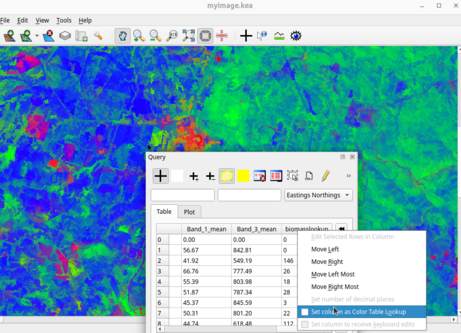
If you select this option, the behaviour will be either:
- If you have only one surrogate colour table in the current image this column will be directly used as a lookup into the surrogate colour table.
- If you have more than one surrogate colour table you will be presented with a dialog allowing you to choose which surrogate colour table to use. This column will then be used as a lookup into the chosen surrogate colour table.
The image will now be displayed using the column as lookup into the surrogate colour table:
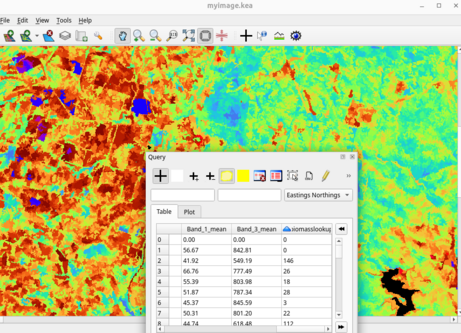
Note that a small icon ( ) is now drawn against next to the column header that is being used as a lookup.
To remove the colour table lookup, select the same menu option again and it will be removed and the original colour table shown.
Conclusion
TuiView surrogate colour tables allow you to view your imagery using multiple colour tables for different classifications. This can be a handy feature in situations where you have many different classifications stored in your Raster Attribute Table.